Audit Readiness
How do you share evidence with an auditor without opening your whole workspace?
Follow one evidence pack from a 14-day, view-only link to its recorded opening and revocation in cmpliance.
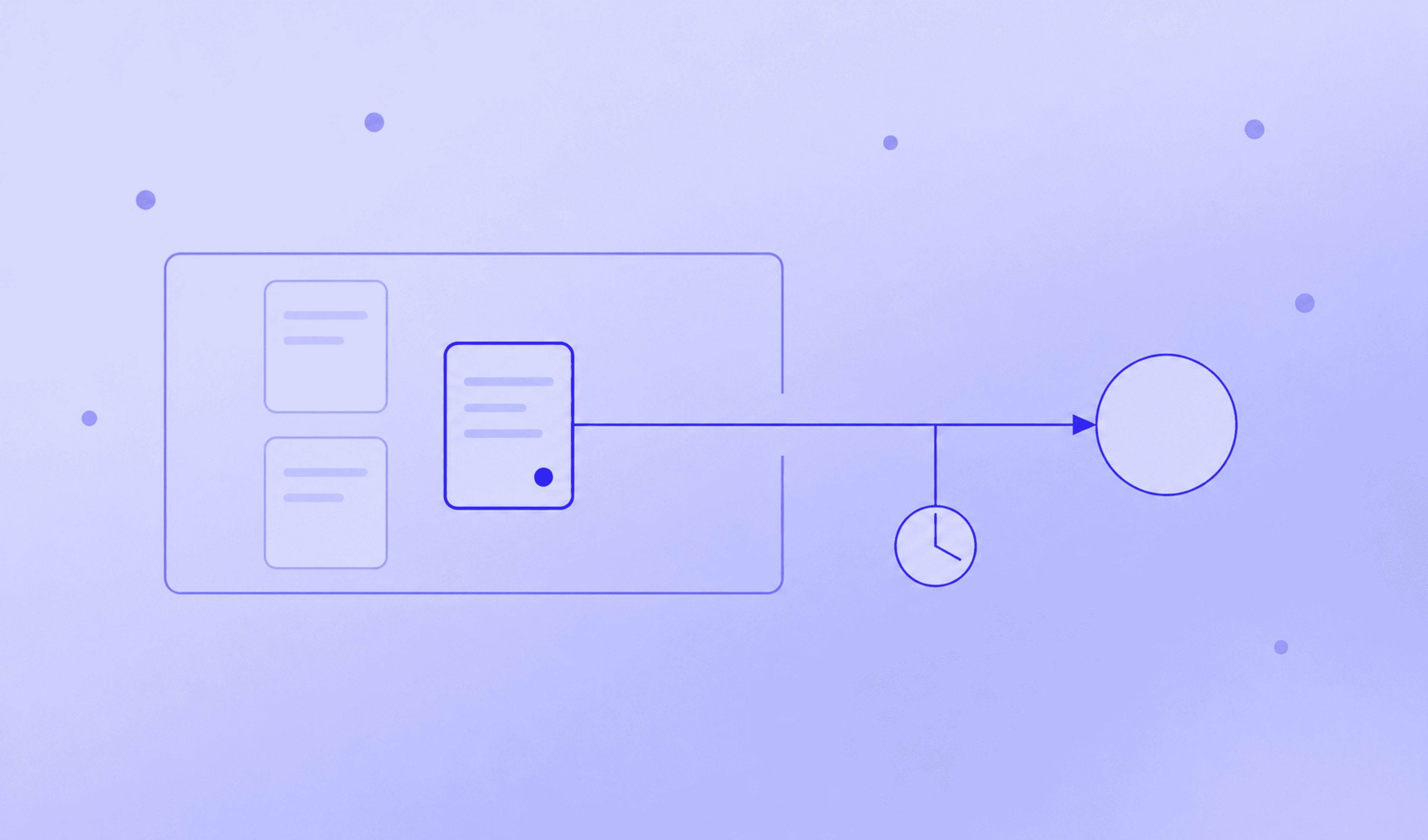
An auditor asks for the evidence behind one decision. Your workspace holds other counterparties, other reviews and material outside that request. The task is to give them the right pack without giving them somewhere to browse everything else.
There is a second question, too. When the engagement ends, can you close that access and show what happened to it?
In cmpliance, the handover starts from the pack itself. The 51-second walkthrough, "Share one pack with an auditor", follows an authorised team member creating a time-limited link, opening it outside the workspace, checking the recorded activity and revoking it. The person sharing chooses the access. The recipient gets one pack.
Watch: Share one pack with an auditor
Create a time-limited link to one evidence pack, inspect its recorded opening, then revoke it in cmpliance.
Start with the decision the auditor is reviewing
The team member selects "Share with an auditor" from the current evidence pack in a completed case. They record the intended recipient and choose "View only" for 14 days.
First identify the assessment and the pack the auditor needs. Then decide how to share it. A counterparty may have several reviews, and the newest file is not necessarily the record relevant to the question being asked. Our evidence-file walkthrough covers finding the right record across those reviews.
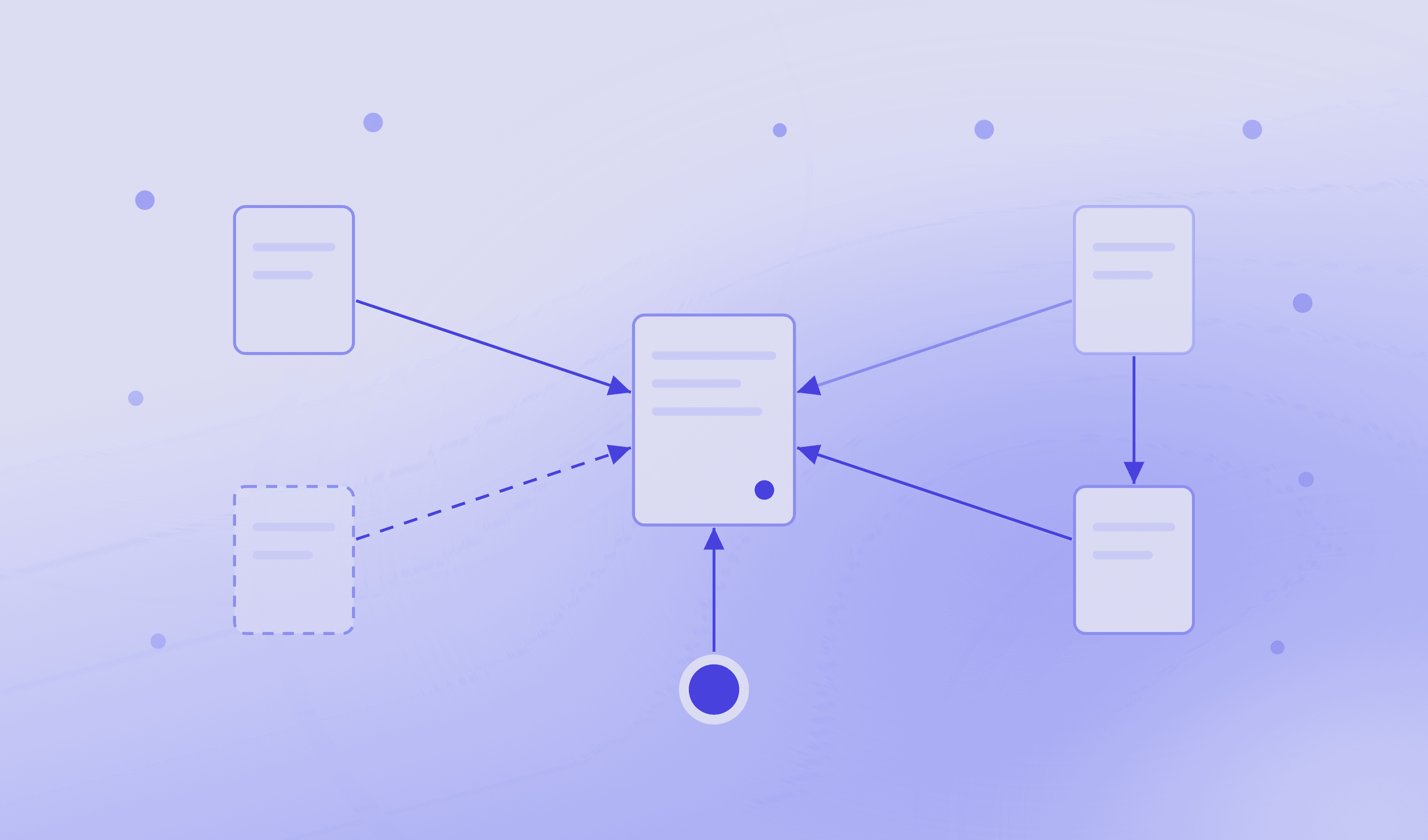
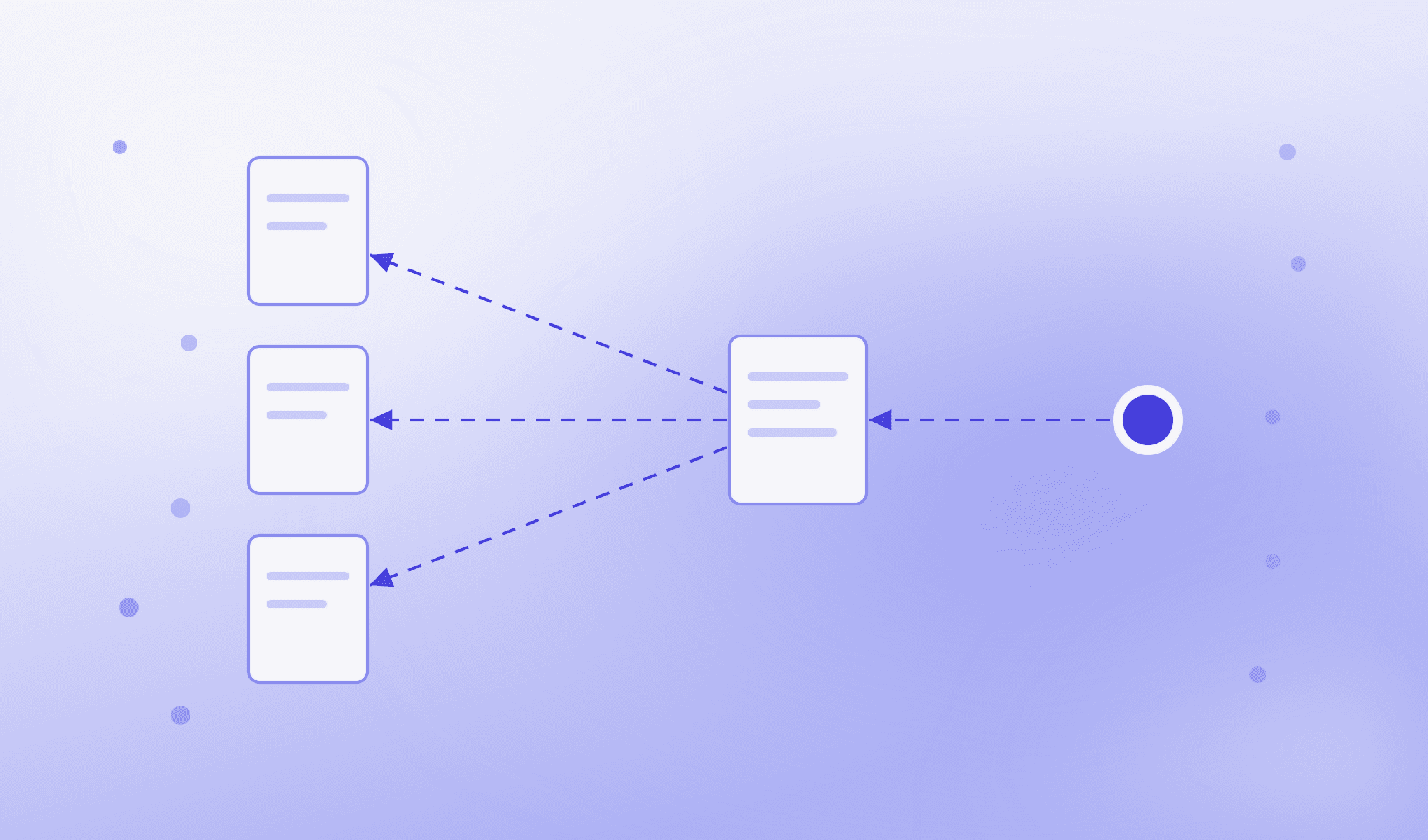
Here, the sharing link is tied to one pack revision. It is not an invitation to the counterparty's whole file or to the team's workspace.
Before creating it, the team member still has to judge whether the pack is appropriate to share, whether it answers the request and how long access should remain available. The controls make those choices explicit; they do not make the choices for the team member.
Give the recipient a view of that pack
The creation dialog offers "View only" or "View and download", with an expiry of 7, 14 or 30 days. This walkthrough uses "View only" for 14 days. The next screen makes the link available to copy once, for the team member to send to the intended recipient.
The recipient opens the link in a signed-out browser. The page shows the pack, its revision, expiry and SHA-256 hash. There is no route into the rest of the workspace.
The pack revision identifies what was shared. The hash supports checking the file's integrity; it does not establish that the information inside is correct. That remains a question for the evidence and the people reviewing it.
"View only" provides browser viewing without a download button. Decide what is suitable to disclose before sharing: material displayed in a browser can still be saved or captured.
Keep the opening tied to the link
Back inside cmpliance, the Outside access tab shows the link's intended recipient, pack revision, access mode and expiry. Its events include "Opened the link" and "Viewed the pack", with times, alongside the person who created the link.
Those records let a colleague answer a practical follow-up: which pack did we make available, under which access terms, and was that link opened?
The recipient name records whom the link was issued to. It is not an identity check on the person opening it.
End the access when the engagement ends
The team member revokes the link and enters the reason "Engagement ended". The record changes to "Revoked" and retains the reason, the revocation event and the earlier opening events.
The film then returns to the same link. This time, the recipient sees "Access to this evidence pack has ended" and is told to request a new link.
The sharing history remains available to the team after access closes. Someone reviewing the handover can see which pack was shared and why the link stopped working. Revocation prevents the next use of the link; it does not recall copies someone may already have kept.
Try the handover from the outside
Use a pack your team is allowed to share. Ask a colleague to open its link in a signed-out browser, without help from the team member who created it.
Can they identify the pack revision and expiry? Can they view only the material intended for them? Back in the workspace, can another team member find the link and its recorded opening?
Then revoke it with a reason and try the same link again. Check both sides: the recipient should lose access through that link, while the team should retain the explanation. This is a more useful test than checking whether a share button produces a URL.
Where cmpliance fits
An audit-ready evidence pack must preserve enough for another person to examine the decision. Sharing it is the next piece of work: putting that exact record in front of an outside reviewer without opening unrelated material.
The cmpliance virtual data room connects those tasks. The evidence file keeps packs and decisions findable across reviews. Pack-level sharing gives the team control over what an auditor can open and when that access ends. In this flow, a person chooses the recipient, access mode and expiry, then records the reason if access is revoked.
See how cmpliance works. Bring us an audit request your team currently fulfils by searching folders and checking permissions by hand.
Agents do the work. Humans make the call.
Start from the decision and pack the auditor needs. Share one pack revision, not the whole workspace.
Record the intended recipient and choose an access mode and expiry. Keep opening events tied to the shared pack and link.
Revoke access with a reason when it is no longer needed, and retain the record of the handover.
Frequently asked questions
→Does an auditor need access to our cmpliance workspace?
The sharing flow gives the recipient a link to one evidence pack. The recipient can open that pack outside the workspace without gaining navigation to other cases or records.
→How long does the link remain available?
The team member chooses an expiry when creating it. The walkthrough uses 14 days and shows the team member revoking the link before that period ends. Access also ends when the link is revoked or when a newer pack replaces the shared one.
→What remains after the link is revoked?
The Outside access record retains the pack revision, access details, earlier opening events, revocation event and reason. The same link is refused on its next use.